 PA Trace for live sound
Measurement troubleshooting
Organized by what you see on the screen. Each problem lists the likely causes and the checks that tell them apart, from the quickest to the slowest. Most of them come down to the signal path, the delay, or the room.
Updated 17 November 2026
The microphone meter does not move
- Phantom power off, gain at minimum, or a bad cable. Turn on phantom power, raise the preamp gain, try another cable.
- The input is not enabled, or the measurement uses another channel. Check the input's own meter in the audio setup while you speak near the microphone, then check which input the measurement uses.
- The measurement is stopped. Start it.
The reference meter does not move
- The reference is not routed to the interface, or goes to another input. Follow the cable from the console output; compare the reference channel in the measurement with the input that actually moves.
- The loop-back is not enabled. A loop-back is set in the interface's own mixer or control panel, not in the analyzer.
- Nothing is playing. Switch on the generator, or play program through the console output that feeds the reference.
Dropouts, clicks or gaps
- The buffer is too small for the computer. Raise it until the dropout counter stays at 0. Latency does not affect the measurement.
- Power saving, Wi-Fi scanning or other programs interrupt the audio. Use a high-performance power plan, plug in the charger, close other audio programs.
- Two interfaces without a shared clock. Lock them to word clock, AES or the network clock.
Low coherence
- The delay is not set, or has drifted. Find it again.
- Background noise louder than the signal. Raise the signal, average deeper.
- Wind or temperature moving the arrival. Windscreen, deeper averaging, patience.
- Reflections at the measurement position. Move the microphone away from walls and large surfaces.
- No energy at those frequencies. Use full-band pink noise, or program that covers the range.
Where coherence is lost tells you which. See coherence explained.
The phase is unstable or wraps rapidly
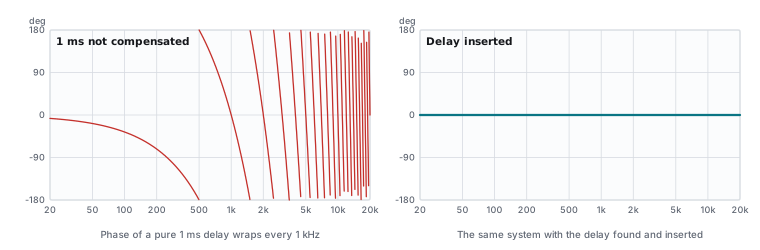
- The delay is not set. A pure delay wraps the phase every 1/delay Hz: 1 ms of uncompensated delay wraps it every 1 kHz. Find the delay and check the impulse response peak sits at the inserted delay.
- Low coherence at those frequencies. Hide the unreliable parts (coherence blanking) and average deeper.
- The arrival moves: wind, a microphone on a swaying stand, unlocked clocks.
The magnitude looks wrong
- Reference and measurement swapped. The response appears upside down.
- A weighting, an inversion or an offset on the display. Check the trace's display settings.
- The reference is taken in the wrong place: after the console EQ you want to see, or before the processor you are tuning. See measurement setup.
- Low coherence with Complex averaging, which reads low there. Compare with Polar; trust neither where coherence is poor.
- A microphone correction file on the wrong input.
Measurements do not agree with each other
- The microphone moved, or sits in a room mode or a reflection notch. Write the position into each capture's name or comment; measure several positions and average.
- The capture was taken before the trace settled. Wait until it stops moving.
- Different settings between captures: smoothing, FFT size, averaging, delay.
- The temperature or the audience changed. Set the air temperature and re-check delays.
The delay finder gives a wrong or jumping delay
- A reflection is louder than the direct sound. Use the first-arrival method or the energy-time curve instead of the highest peak.
- The source is band-limited, such as a sub. Find the delay within its octave band.
- The signal is too low. Raise it and average more frames per find.
SPL readings look wrong
- The input is not calibrated, or was calibrated with a weighting on. Calibrate again with no weighting.
- The interface gain changed after calibration. Do not touch it, or recalibrate.
- The meter shows another metric than you think: A or C, Fast or Slow, an Leq.
When you ask for help
Send the software version, a screenshot or project file that shows the problem, and what you were measuring with which hardware. For PA Trace, also include the Verify Measurement Accuracy report (Help menu, Copy Report) and write to support@patrace.app.
In PA Trace: click the health dot on a Transfer engine first. It checks the levels, clipping, dropouts, coherence and a moving arrival, names the likely cause and says what to do. The full troubleshooting chapter, including license and network questions, is in the user manual in the Documentation folder of your download.
Related guides
- Measurement setup Microphone, interface, where to take the reference, and the levels that make a measurement trustworthy.
- Coherence explained What the coherence trace means, what each pattern of low coherence points to, and how to raise it.
- Microphone calibration SPL calibration with a 94 dB calibrator, mic correction files, and when each one matters.
- Glossary Short definitions of the terms used in system measurement and tuning, from acoustic center to Wind Lock.